Option to Compare Folios
Stay is enhanced to display folios in a reservation side-by-side. This feature enhances user experience allowing users to easily compare multiple folios and quickly transfer items between them.
A new tab, All Folios, is added next to the Summary tab in the Folios section of the Reservation page. The folios in the All Folios tab are displayed in the order in which they are shown in the reservation. Users can choose the none option from the dropdown list in All Folios tab, if no folio is required to be displayed. If only two folios are present in a reservation, the folios are displayed side-by-side with the following columns:
-
Date
-
Description
-
Quantity
-
Total
If three or more folios are present in a reservation, the folios are displayed side-by-side in a three-folio layout with the following columns:
-
Date
-
Description
-
Total
If there are five folios, the first three folios are displayed in the first page and the remaining two folios are displayed in the next page. Users can navigate to the other pages by clicking on the page navigator at the top-right corner of the tab.
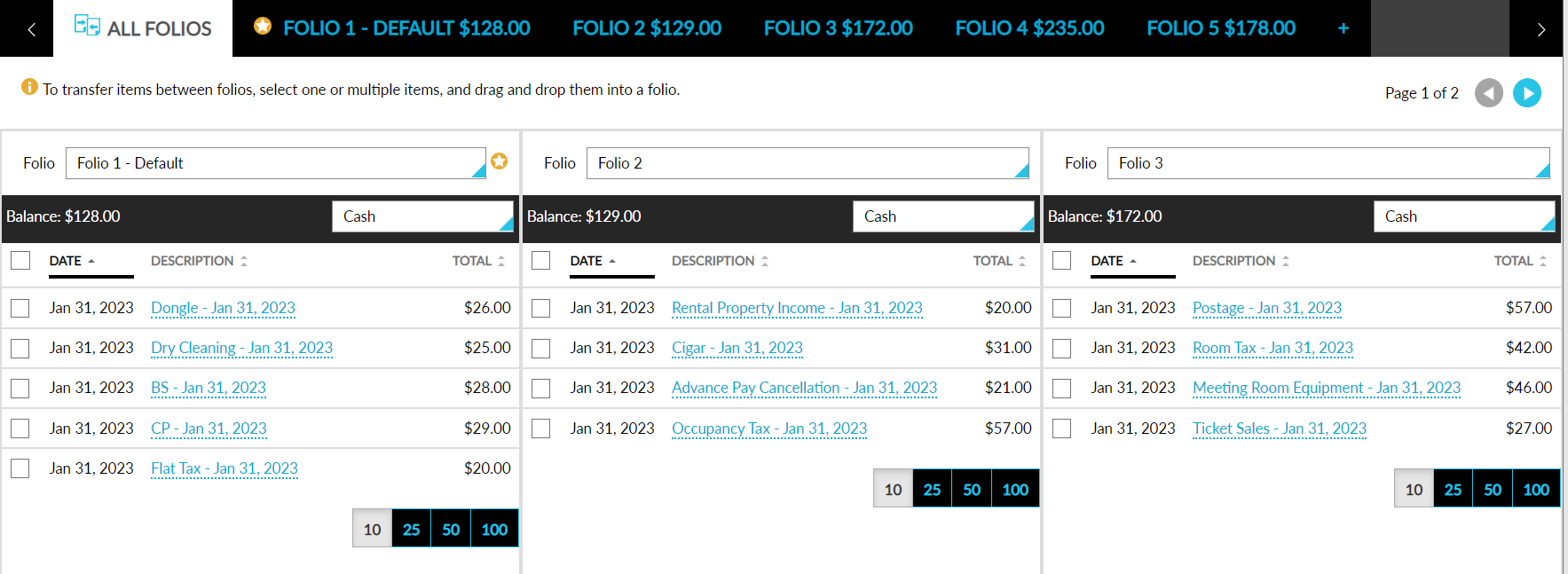
Users can quickly transfer multiple items from a folio by selecting the items, and dragging, and dropping them to another folio. Users can transfer the items between the folios in the same page and in different pages. The Adjust button will be greyed out in the All Folios tab. Users can adjust a charge by clicking on the transaction item hyperlink in the All Folios tab.
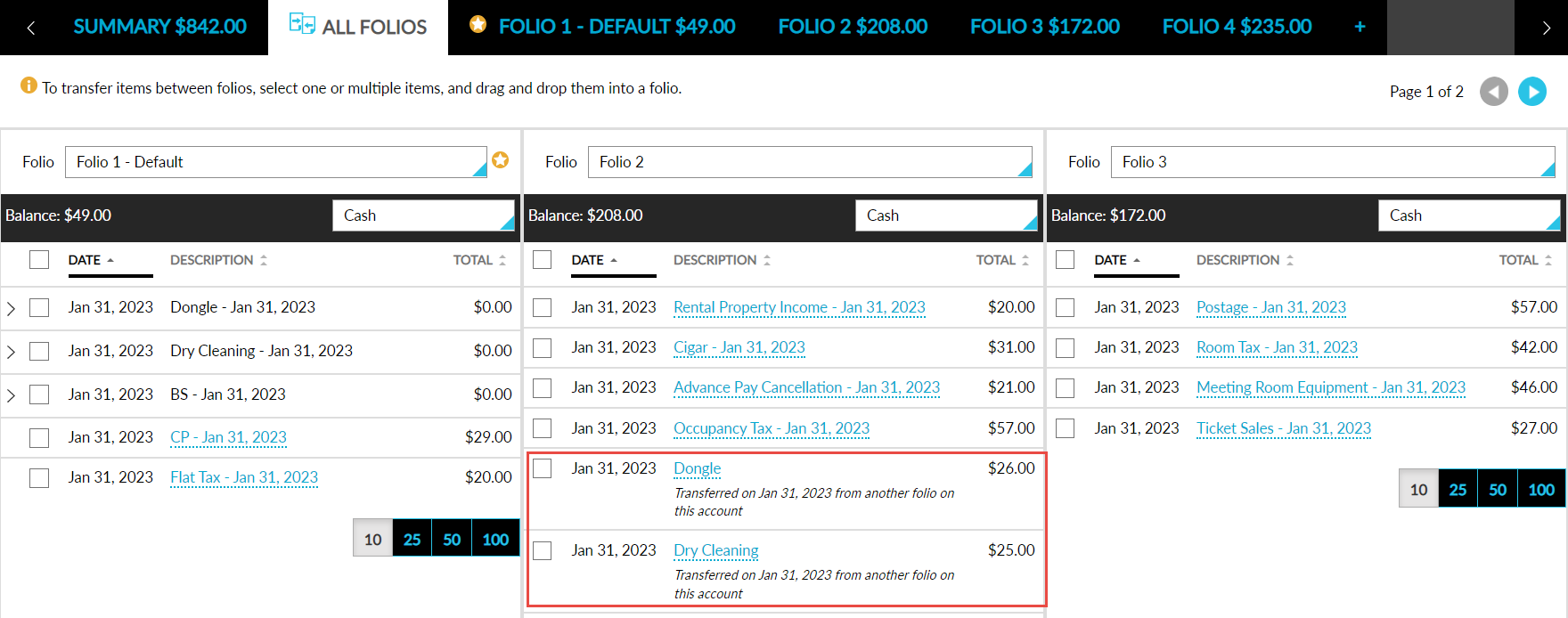
In addition to the new All Folios tab, the following changes have been made as part of this feature:
-
A new feature setting, Compare Folios Side-by-Side, has been introduced. When enabled, users can view the reservation folios in a side-by-side view, rearrange the folios, compare, and drag, and drop items between them. When disabled, users are not provided with the side-by-side view option.
-
A new flag, Make Reasons Non-Mandatory for Transfers Within the Account, has been introduced in Settings ➜ All Settings ➜ Templates ➜ Folio ➜ Options. When enabled, users are not prompted to enter a reason in the Transfer Charges screen, when transferring charges within the same reservation. However, users are prompted to enter a reason when transferring charges from the reservation to another account.
-
At the top of each folio in the All Folios tab, the following options are provided:
-
A folio drop-down list that displays a list of all the folios present in the reservation. Users can select the folio to be displayed. An indicator is displayed against the default folio.
-
The total balance of the folio is displayed next to the balance field.
-
A payment method drop-down list that displays a list of all the available payment methods. Users can change the default payment method for the folio.
-
Pagination is provided within the folios to display the transaction items. A list of five items will be displayed per folio page.
-
When transferring items between the folios, users are not prompted to enter a reason, if the flag Make Reasons Non-Mandatory for Transfers Within the Account is enabled.
-
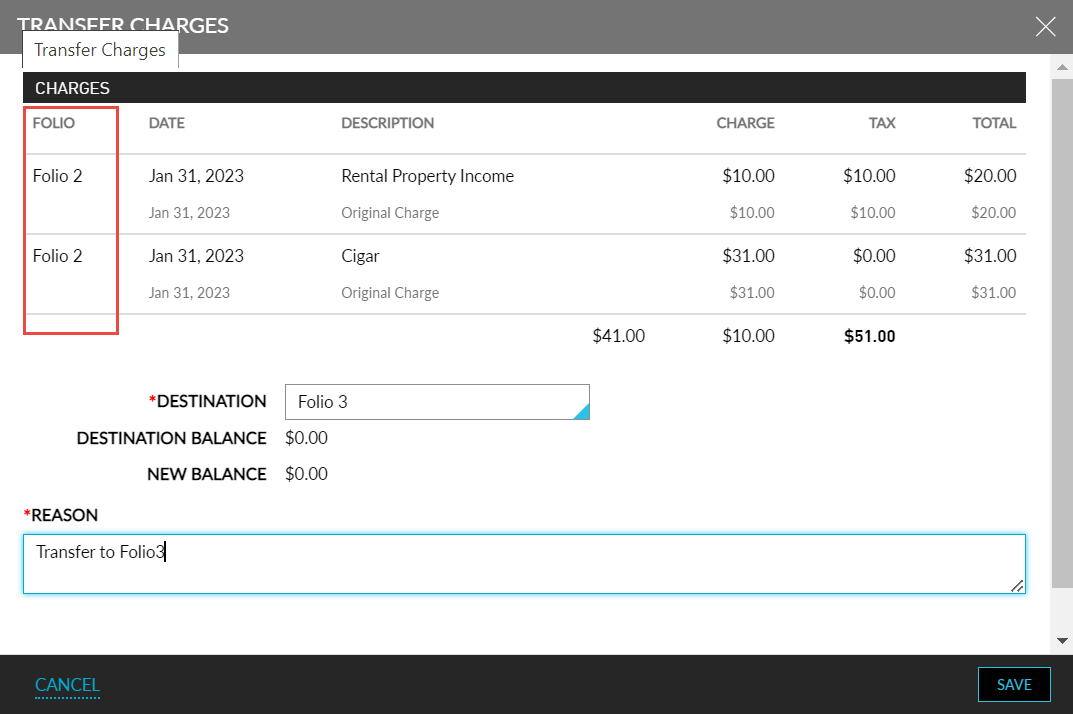
When the flag is disabled, the Transfer Charges screen will be displayed when users transfer items between the folios. A new column, Folio, is added to the Transfer Charges screen. This column lists the items selected by the user and their respective folios. The destination folio name will be prepopulated. Users can enter a reason and complete the transfer.
Currently, when a charge is posted to the default folio, users are navigated to the summary tab instead of the default folio tab.